
How to Pair, Charge & Check Apple Pencil 1 Battery with iPad 9
1/15/20266 min read
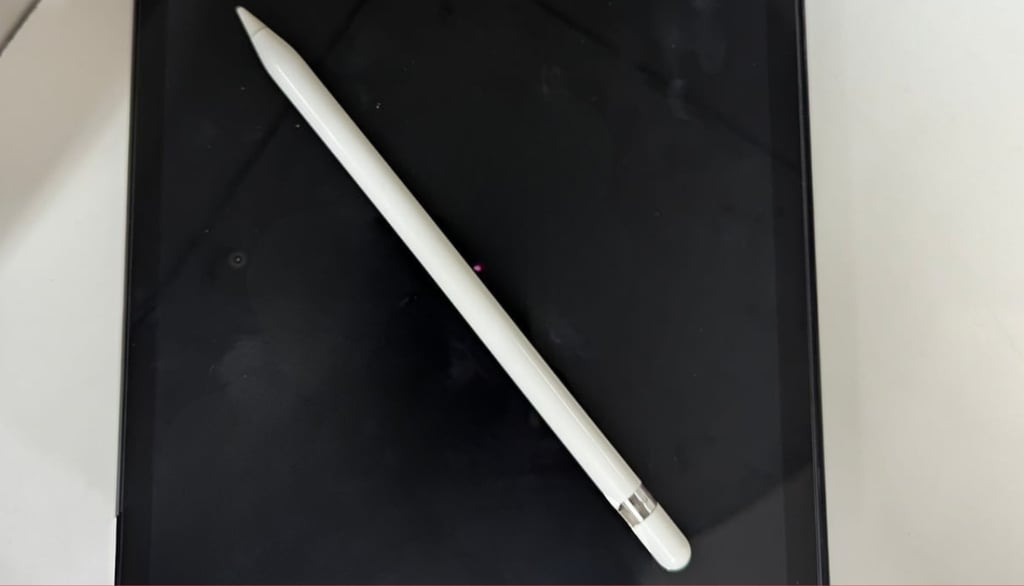
If you are like me and own a good classic iPad 9th generation and an Apple Pencil 1st generation, and are having issues with it not connecting to your iPad 9, not charging, or not being able to figure out where the battery percentage is, you’re not alone. Many users, especially those upgrading from an older iPad or using an Apple Pencil for the first time, find this process confusing because the steps are not immediately obvious.
Since Apple Pencil 1 is quite different from all other pencils and have different method to get connected. Even I was confused when I first used it.
The good news? You don’t need any apps or technical knowledge.
In this guide, you’ll learn how to pair Apple Pencil 1 with iPad 9, how to charge it properly, and how to check the battery level, step by step, in plain language.
How to Pair Apple Pencil 1 with iPad 9
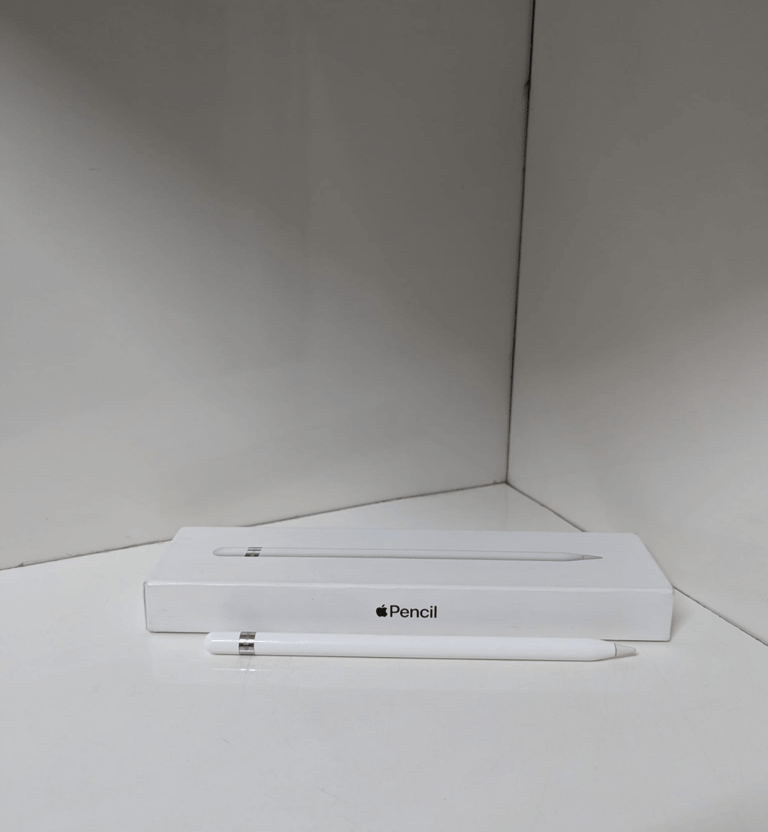
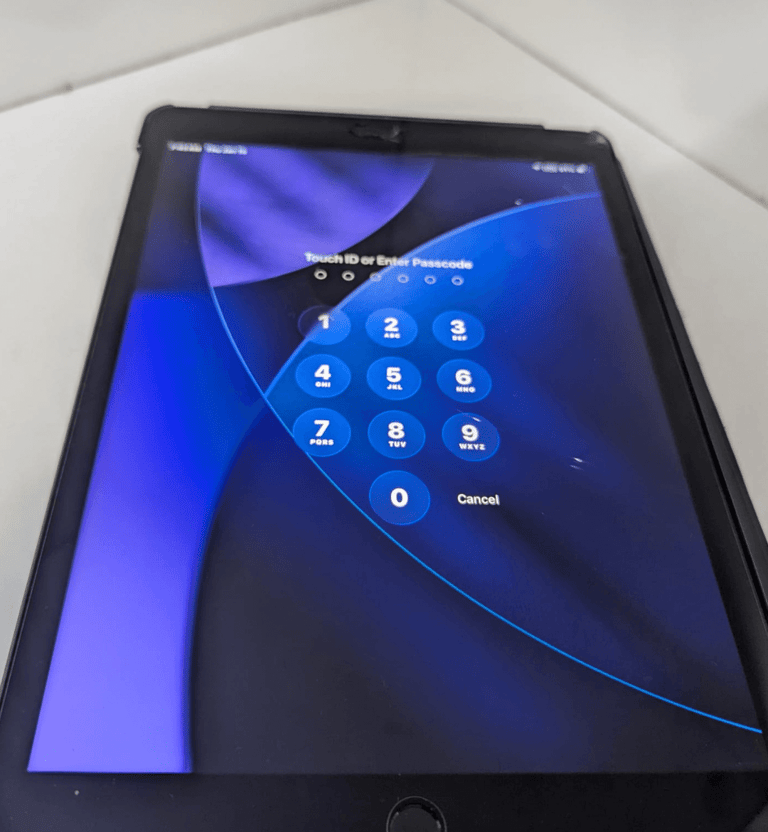
Image 1
Image 2
Step 1: Make sure your iPad is unlocked
To connect your apple pencil, turn on your iPad and unlock it to the Home Screen. Pairing will not work if the iPad is locked or asleep as you can see in image 2.


Image 3
Step 2: Remove the Apple Pencil cap
Now take off the small cap at the top of the Apple Pencil to expose the Lightning connector as you can see in image 3. Funny part is don’t lose this cap it’s easy to misplace.
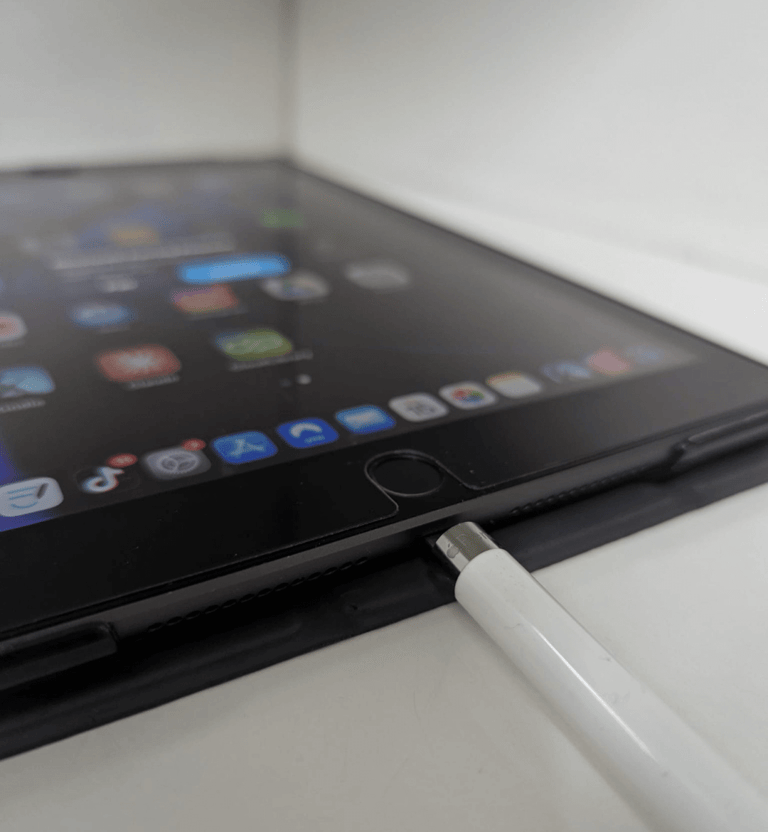
Image 4
Step 3: Plug the Apple Pencil into the iPad
Insert the Apple Pencil directly into the iPad’s Lightning port at the bottom. Push it in gently but firmly until it is fully connected as in image 4.
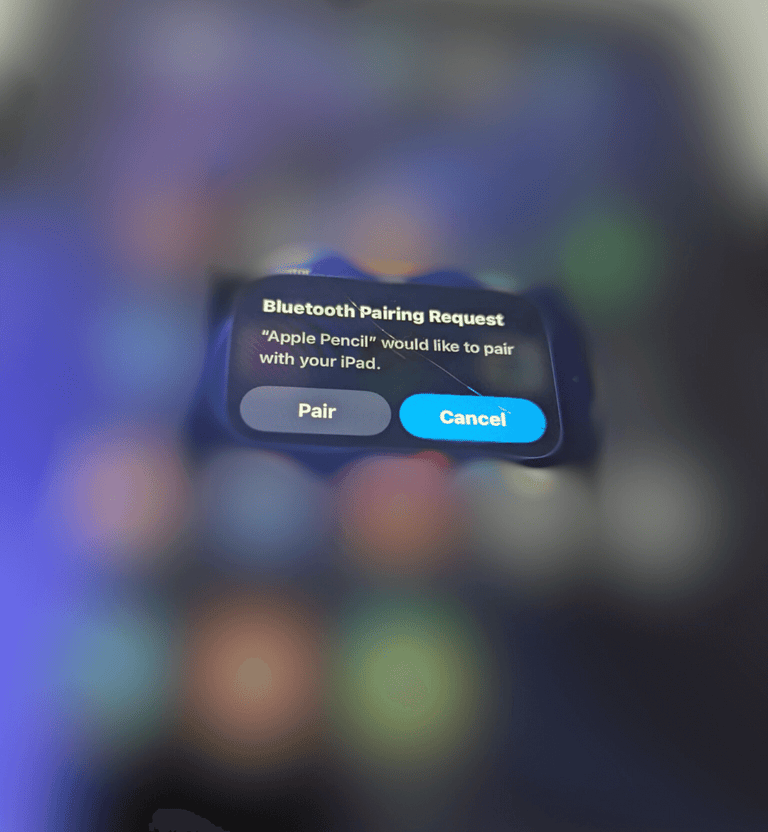
Image 5
Step 4: Tap “Pair” immediately
Now in this step you don't need to turn on bluetton before if you did it well and good but if you didn't it will first ask you to "Turn on Bluetooth" and when you click on that it, a pop-up will appear on the screen saying “Bluetooth Pairing Request” as you can see in image 5. Tap Pair right away.
If you wait too long, unplug the Pencil and plug it in again.
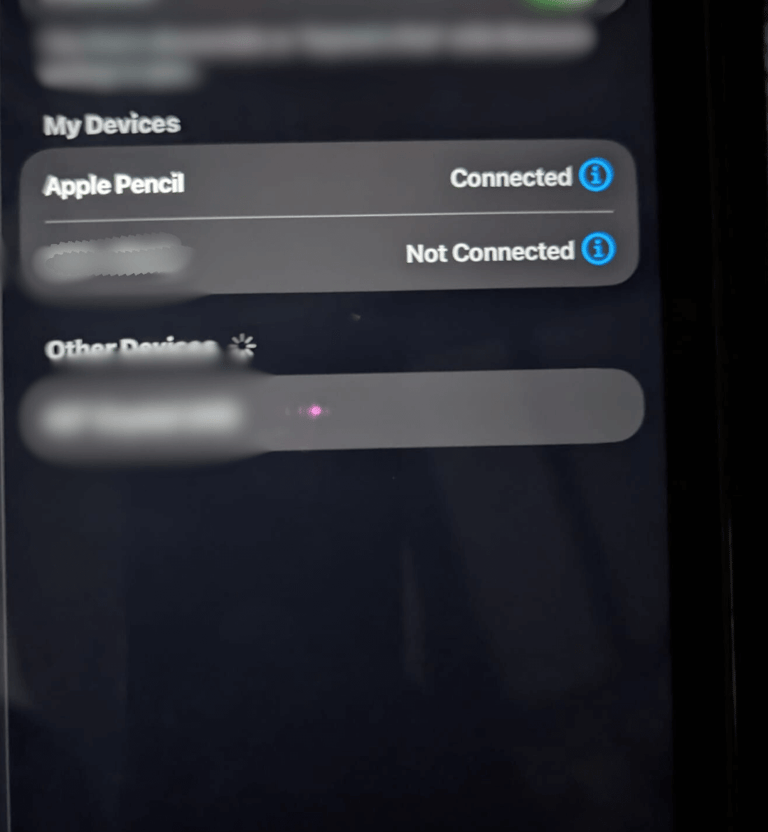
Image 6
Step 5: Wait a few seconds
After tapping Pair, wait 5–10 seconds. Now you can see that the Apple Pencil is now connected and ready to use as in image 6.
Some important points to consider:
Pairing will not work through adapters or cables.
If nothing happens, charge the Pencil for a few minutes and retry.
Once paired, the Apple Pencil reconnects automatically whenever it’s near your iPad.
How to Charge Apple Pencil 1
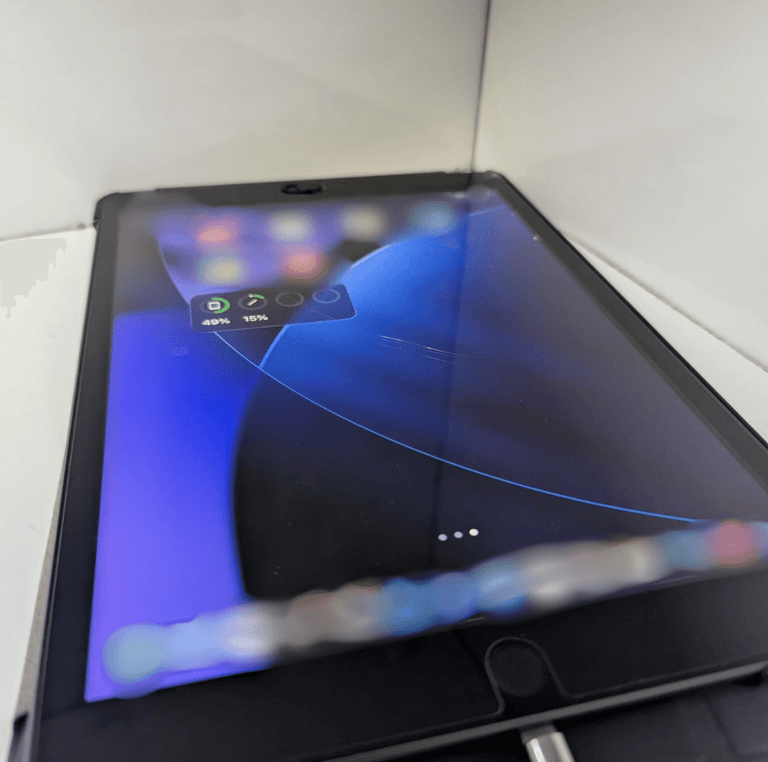
Image 7
Method 1: Charge Directly Using the iPad (Most Common)
Make sure your iPad 9th generation is turned on or awake.
Remove the cap from the top of the Apple Pencil to reveal the Lightning connector as you can see in image 7.
Plug the Apple Pencil directly into the iPad’s Lightning port at the bottom.
Leave it connected for 10–15 minutes for a quick charge, or up to 30 minutes for a near-full charge. A full charge usually lasts about 12 hours of use.
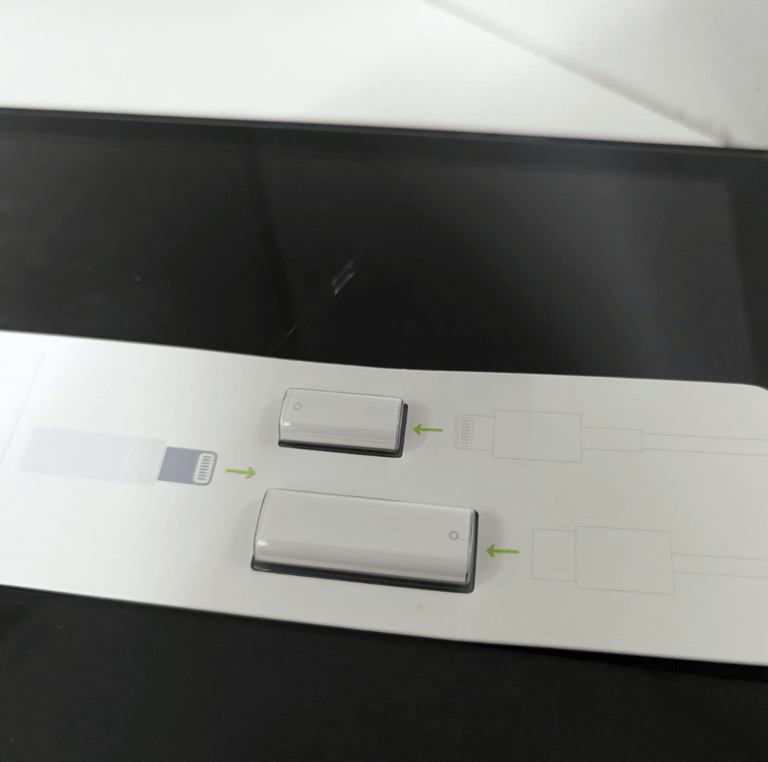
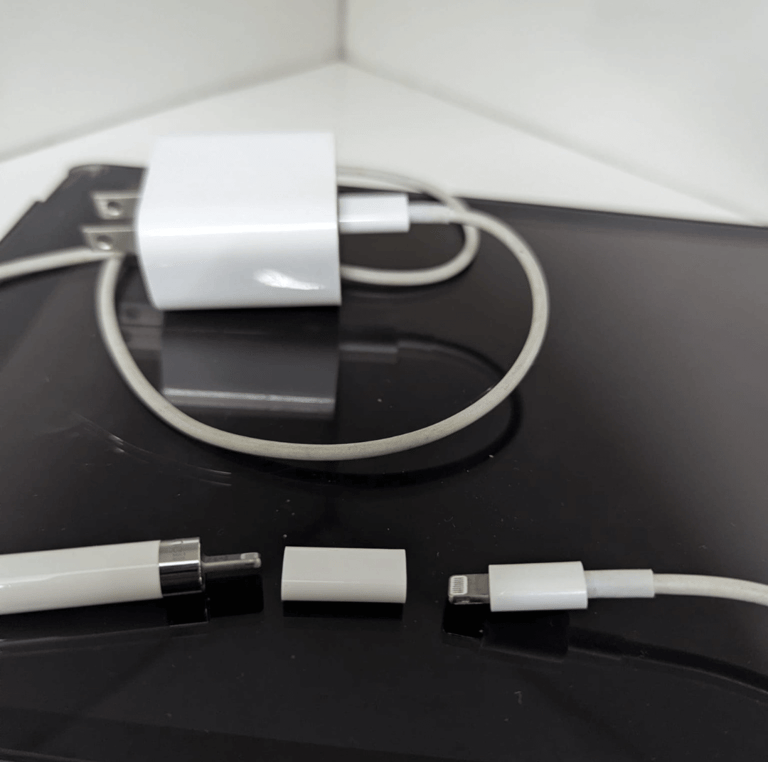
Image 8
Image 9
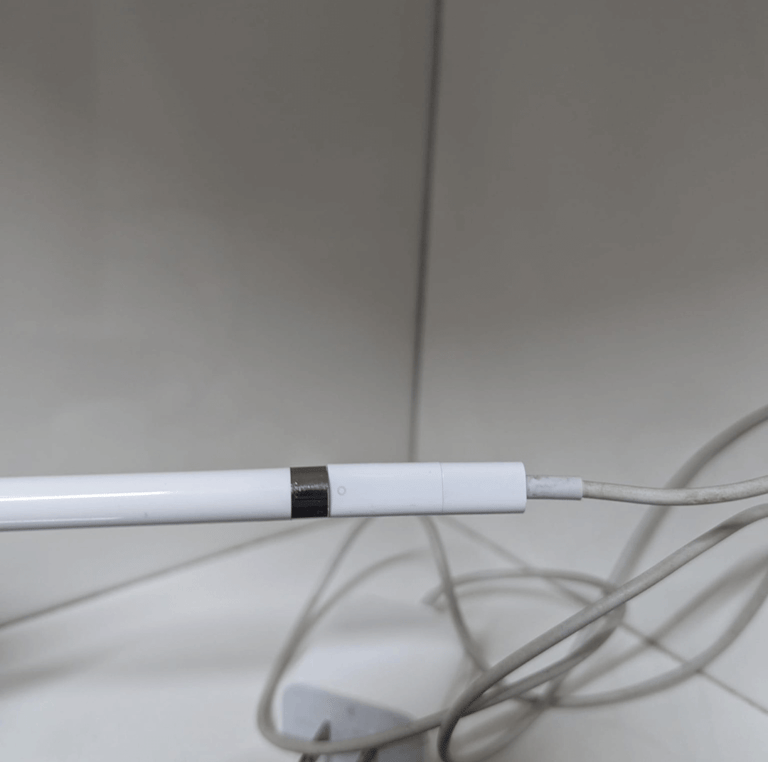
Image 10
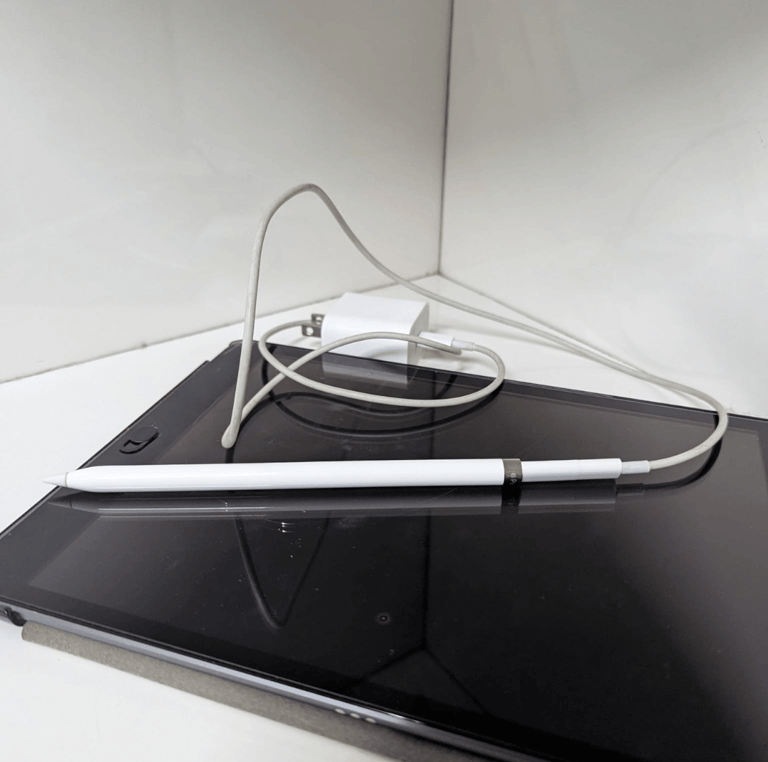
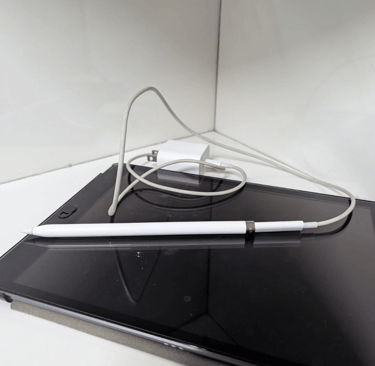
Image 11
Method 2: Charge Using a Lightning Adapter
Some Apple Pencil boxes include a small Lightning adapter. I got one small Lightning adapter and type c to Lightning adapter as you can see in image 8
Plug the Pencil into one side
Plug a Lightning charging cable into the other side as you can see in images 9 and 10. I have put multiple images so you don't have any confession.
Now connect the cable to a wall charger and you can charge your pencil as you can see in image 11.
This method is safer if you don’t want the Pencil sticking out of the iPad. But personally i don't use this because i don't want to extra charge my pencil i prefer method one because ipad know how much charge should go into apple pencil.
Some important points to consider:
The Apple Pencil cannot charge wirelessly
If it won’t charge, leave it plugged in for at least 5 minutes, then check again
How to Check Apple Pencil Battery

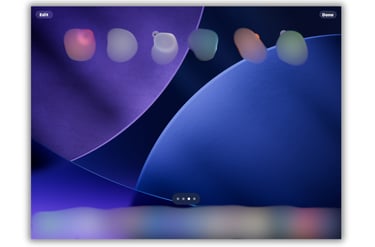
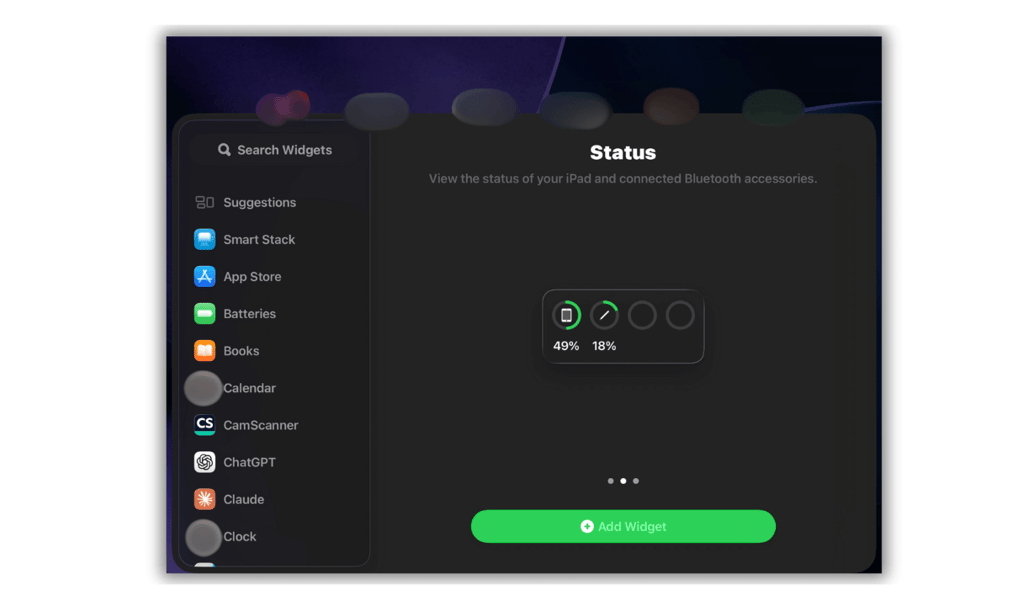
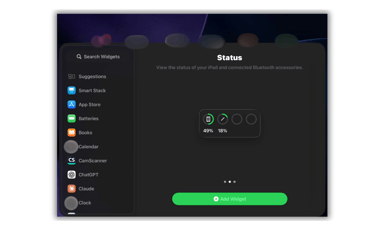
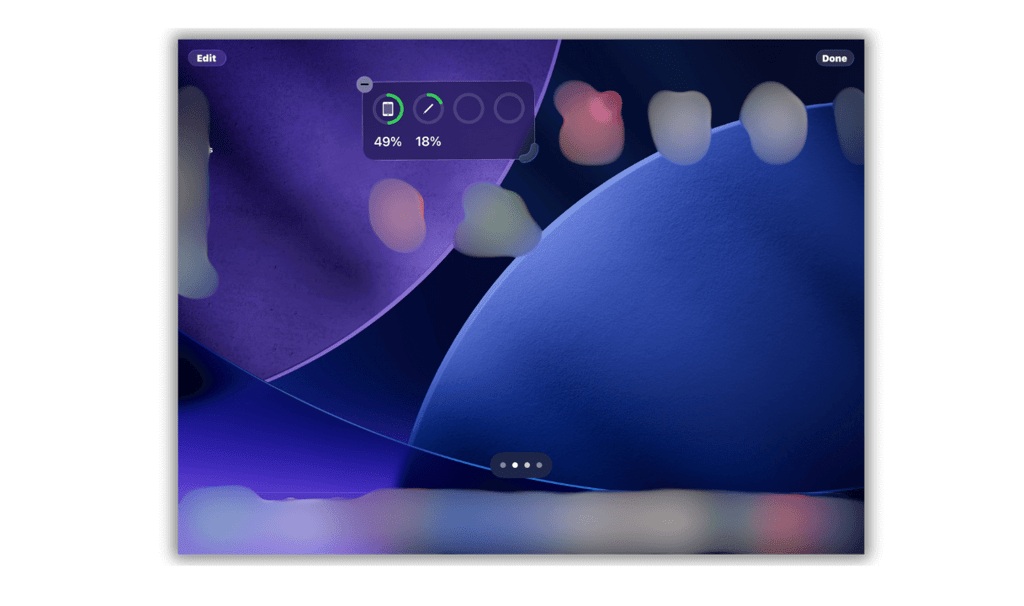
Image 12
Image 13
Image 14
Method 1: Use the Batteries Widget (Recommended)
Make sure your Apple Pencil is paired with your iPad 9th generation.
long tap on anywhere on home screen and it will pop up options as you can see in image 12
Tap Edit and then tap add widget option it will direct you to screen as you can see in image 13.
Find Batteries in the list and tap the green + button and select the widget you like.
Tap Done, you will now see the Apple Pencil battery percentage whenever the Pencil is connected to the iPad as in image 14.
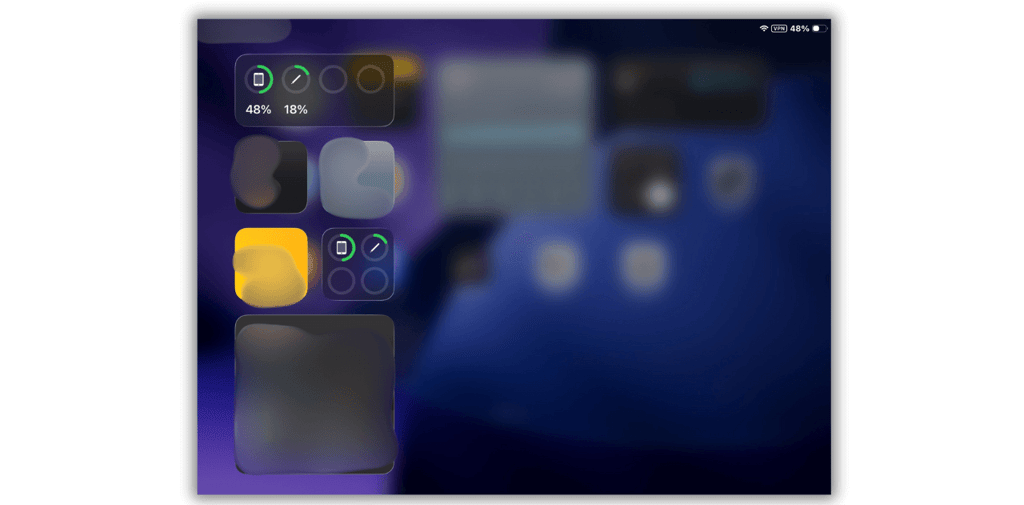
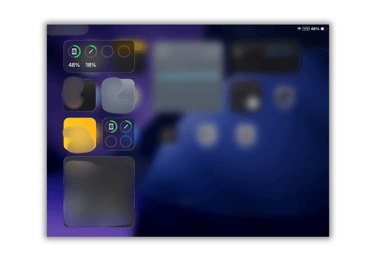
Image 15
Method 2: Scroll left
This is very simple scroll left and the following screen will appear as you can see in image 15 and you can check you apple pencil battery here.
Some important points to consider:
The Pencil must be connected to show battery status
If the battery reads 0%, charge it for at least 5–10 minutes
No third-party apps are required
Common Apple Pencil 1 Problems on iPad 9
Even when you follow the steps correctly, Apple Pencil can still act up on iPad 9th generation. Here are the most common problems and exactly how to fix them.
Apple Pencil Won’t Pair
If the Pair pop-up doesn’t appear, unplug and reconnect
Restart the iPad and try again
Apple Pencil Won’t Charge
Leave it plugged in for at least 10–15 minutes
Try charging using a wall adapter and Lightning cable
Check for dust or debris in the Lightning port
If unused for months, it may need 30 minutes or more to wake up
Battery Percentage Not Showing
Confirm the Pencil is paired
Add the Batteries widget again
Plug the Pencil into the iPad for a few seconds to refresh the status
Pencil Disconnects Randomly
Recharge it above 20%
Turn Bluetooth off and back on
Restart the iPad
Most issues are solved with a simple reconnect or short charge.
Conclusion
Using Apple Pencil (1st generation) with an iPad 9th generation can feel confusing at first, especially if you are using an Apple Pencil for the first time.
But once you know the exact steps, by reading this best guide on this topic everything becomes straightforward. You don’t need extra apps, special settings, or technical experience just the correct order and a little patience.
I hope this guide helped you solve your problem in a clear and easy way. If you own an iPad 9th generation, I highly recommend checking out our other blog posts as well. You’ll likely find more useful tips and guides, as this site is dedicated entirely to helping iPad 9 users get the most out of their device.
FAQ
Q1) Does Apple Pencil 1 work with iPad 9th generation?
A) Yes. Apple Pencil 1 is fully compatible with iPad 9, but it must be paired and charged using the Lightning port.
Q2) Can I charge Apple Pencil 1 wirelessly?
A) No. Apple Pencil 1 does not support wireless charging. It only charges through the Lightning connector.
Q3) Why does my Apple Pencil say 0% battery?
A) This usually means it hasn’t been charged in a while. Plug it in and leave it charging for 10–30 minutes, then check again.
Q4) Do I need any apps to use Apple Pencil?
A) No apps are required. Pairing, charging, and battery checking all work using built-in iPad features.
© 2026 Forme Douce Studio. All rights reserved.